BASIC OPERATION
Overview
While the auto-router is both complex and flexible it is also extremely easy to use. In this topic we look at some basic examples of how we might invoke the router in the different execution modes. Please see the appropriate sections of the documentation if you need more information on controlling router operation.
To invoke the router in fully automated mode
- Select the Auto-router command on the Tools menu.

- Select the Run basic schedule automatically radio button as the Execution Mode.

- If desired, adjust the number of passes from the default values.

- Use the Begin Routing button to autoroute your board. The router runs the schedule and returns you to the layout when it has finished.

To invoke the router in scriptable mode
- Select the Auto-router command on the Tools menu.
- Select the Run specified DO file automatically radio button as the Execution Mode.

- Browse for a router script (DO file) via the Browse button, or type the location directly into the edit field.
- Use the Begin Routing button to autoroute your board. The router runs the script and returns you to the layout when it has finished.

To invoke the router in interactive mode
- Select the Auto-router command on the Tools menu.
- Select the Enter router commands interactively radio button as the Execution Mode.

- Use the Begin Routing button to start the session. Unlike the other two modes, this leaves you in auto-routing mode rather than returning you to the layout.
- A command window will appear at the bottom of the screen allowing you to type routing commands either globally or based on selected areas of the board. Press ESCAPE in the command window when you want to end the session.

See Also:
Routing Multiple Layer Boards
It is mainly the case when routing a 4 layer board that you will route on Top copper and Bottom Copper, and the two inner layers are set to be Plane layers. See Plane Layers for more information. However, there may be the case where you wish to route on an inner layer that is a signal layer. In order to do this you need to set the layers used in the Net Classes tab of the Design Rules Manager:
First, select the Net Class that you wish to set:
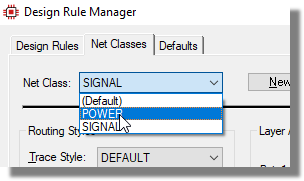
Selecting the net class to be edited
Then, select the layers that you wish the autorouter to use:
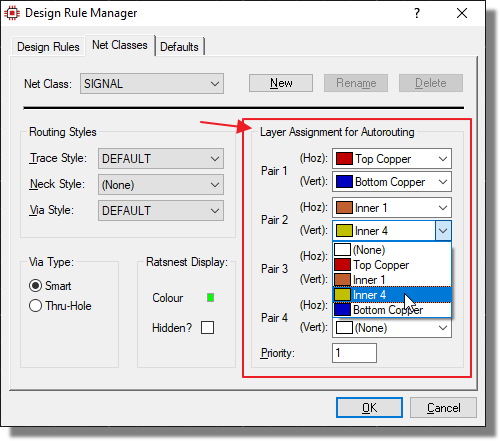
Each pair tells the autorouter to route to or from a specific layer.
You will need to set these pairs for each net class in the list.
Each net class can name several layer pairs on which connections assigned to it will be routed by the autorouter. The (H) layer is for predominantly horizontal routes and the (V) layer for predominantly vertical routes. Single sided routing can be achieved by specifying the same layer for both H and V routes.
Priority
This is used by the autorouter: connections assigned to the highest priority (smallest number) net class will be routed first. Net classes with the same priority will be routed simultaneously. This will probably result in the router spending much more time mapping, but may lead to higher completion rates than routing them in turn, especially on single sided boards.